Communicate your advice exactly how each client needs.
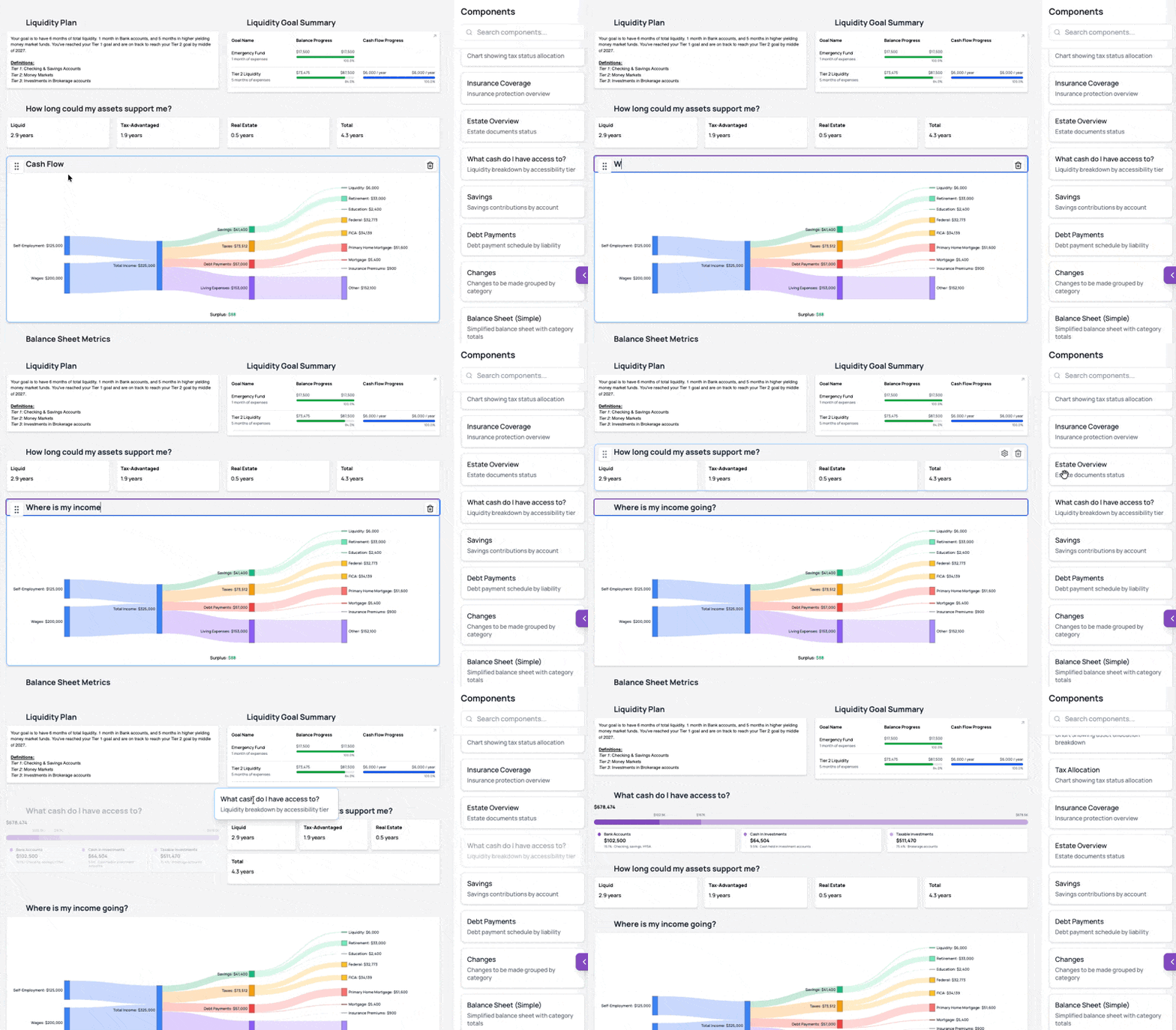
Give every client advice that feels built for them with custom Guides you create from 50+ drag-and-drop components and share by PDF or client portal.
Communicate your advice exactly how each client needs.
Give every client advice that feels built for them with custom Guides you create from 50+ drag-and-drop components and share by PDF or client portal.
Communicate your advice exactly how each client needs.
Give every client advice that feels built for them with custom Guides you create from 50+ drag-and-drop components and share by PDF or client portal.
Dashboards are something you look at.
Guides are something you follow.
Dashboards are something you look at. Guides are something you follow.
Create a Guide for any conversation.
Build a full household Guide or a focused deliverable for one topic, meeting, or decision. Create as many as each client needs.

Create a Guide for any conversation.
Build a full household Guide or a focused deliverable for one topic, meeting, or decision. Create as many as each client needs.
Create a Guide for any conversation.
Build a full household Guide or a focused deliverable for one topic, meeting, or decision. Create as many as each client needs.
Assemble from 50+ live components.
Combine goals, action items, cash flow, investments, taxes, estate planning, and other live results into a Guide that stays current as the client plan changes.

Assemble from 50+ live components.
Combine goals, action items, cash flow, investments, taxes, estate planning, and other live results into a Guide that stays current as the client plan changes.
Assemble from 50+ live components.
Combine goals, action items, cash flow, investments, taxes, estate planning, and other live results into a Guide that stays current as the client plan changes.
Bring in notes and images.
Add advisor-written text, screenshots, diagrams, and notes so the Guide matches how you actually explain the advice.

Bring in notes and images.
Add advisor-written text, screenshots, diagrams, and notes so the Guide matches how you actually explain the advice.
Bring in notes and images.
Add advisor-written text, screenshots, diagrams, and notes so the Guide matches how you actually explain the advice.
Start from a template or ask Dora to draft one.
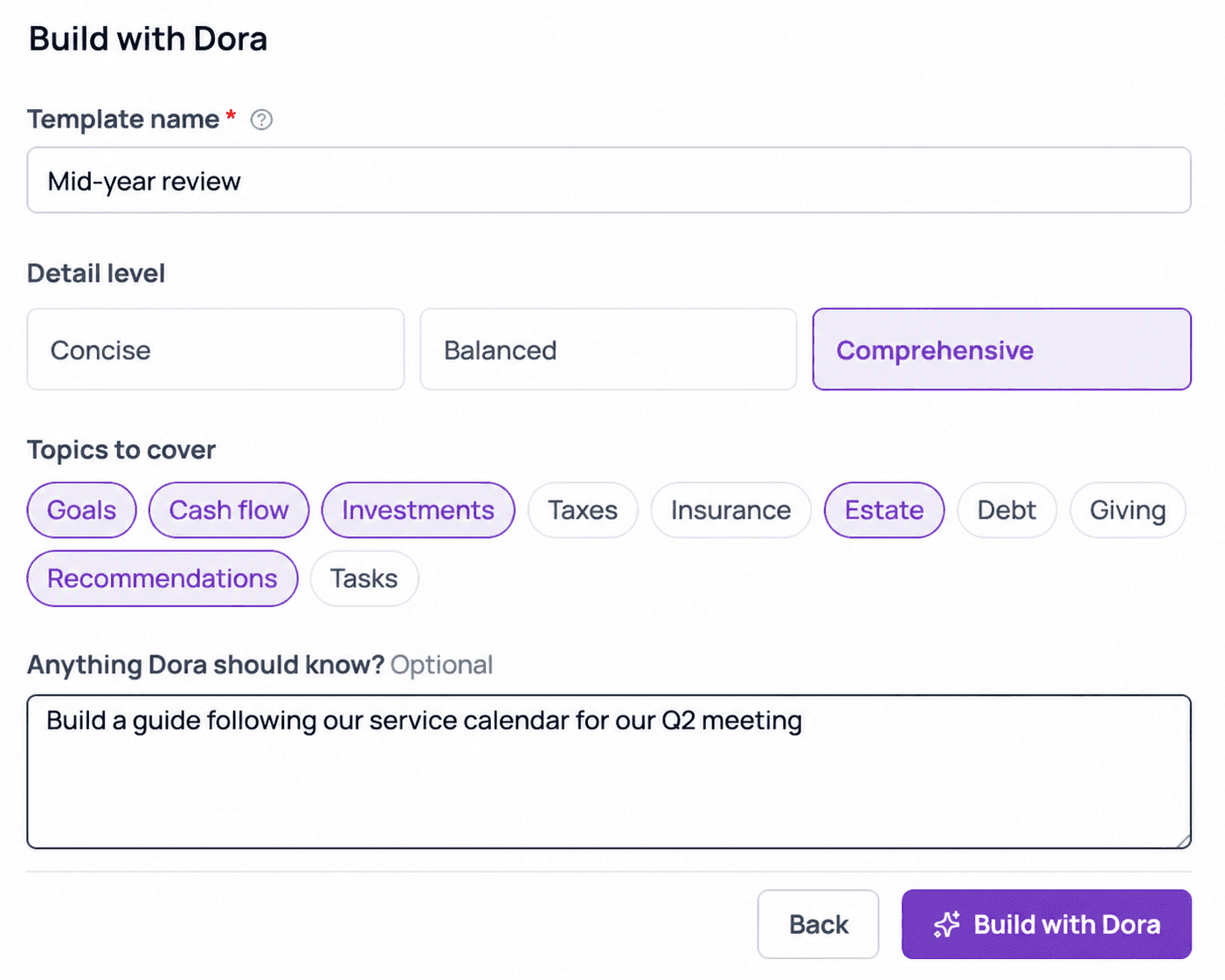
Start with a saved template, build from scratch, or ask Dora to draft a client-specific Guide for you to review.
Start from a template or ask Dora to draft one.
Start with a saved template, build from scratch, or ask Dora to draft a client-specific Guide for you to review.
Start from a template or ask Dora to draft one.
Start with a saved template, build from scratch, or ask Dora to draft a client-specific Guide for you to review.
Deliver live, in the client portal, or as a PDF.
Present a Guide live, share it through a client portal, or export a PDF. Apply your firm’s logo, primary color, name, and disclosures across Guides, portal views, and PDF exports.

Deliver live, in the client portal, or as a PDF.
Present a Guide live, share it through a client portal, or export a PDF. Apply your firm’s logo, primary color, name, and disclosures across Guides, portal views, and PDF exports.
Deliver live, in the client portal, or as a PDF.
Present a Guide live, share it through a client portal, or export a PDF. Apply your firm’s logo, primary color, name, and disclosures across Guides, portal views, and PDF exports.
Guide examples you can build.
Annual review
Show progress, updated planning context, and the new Changes to be made.
Annual review
Show progress, updated planning context, and the new Changes to be made.
Prospect meeting
Quickly show prospects exactly what you'll do for them.
Prospect meeting
Quickly show prospects exactly what you'll do for them.
Meeting summary
Send the client home with the decisions, notes, and follow-up.
Meeting summary
Send the client home with the decisions, notes, and follow-up.
Focused plan
Explain a specific topic like liquidity, tax, insurance, or retirement accumulation.
Focused plan
Explain a specific topic like liquidity, tax, insurance, or retirement accumulation.
Comprehensive plan
Bring the client’s full financial life into one living deliverable.
Comprehensive plan
Bring the client’s full financial life into one living deliverable.
Action dashboard
Show open and completed tasks and strategic changes.
Action dashboard
Show open and completed tasks and strategic changes.